Ajay Kumar
Quick answer: Meta Pixel vs Conversions API
The Meta Pixel sends events like Purchase from the visitor's browser; the Conversions API (CAPI) sends the same events from your server, so they still reach Meta when browsers or ad blockers drop the pixel. Meta recommends using both, with a shared event ID so each sale is counted once. On Shopify and WooCommerce, the official Meta integrations set up both.
Meta's AI is only as good as the data you give it. If your Pixel misses half your purchases, Meta optimises for the wrong people, your ROAS looks worse than it is, and you make bad decisions. In 2026, with browsers blocking more tracking, the Pixel alone is no longer enough.
This guide explains the Pixel and the Conversions API in plain language and shows you how to set them up and check they work.
What is the Meta Pixel?
The Meta Pixel is a small piece of code on your website. When a visitor does something important - views a product, adds to cart, purchases - it sends an event from their browser to Meta. Meta uses these events to report results, build audiences and optimise delivery.
The weakness: browser-based tracking can be blocked or limited by ad blockers, browser privacy features, slow pages and users who leave before the code fires.
What is the Conversions API?
The Conversions API (CAPI) sends the same events from your server (or your e-commerce platform's server) directly to Meta. Because it doesn't depend on the visitor's browser, it fills in many of the gaps the Pixel misses.
Why you need both - and deduplication
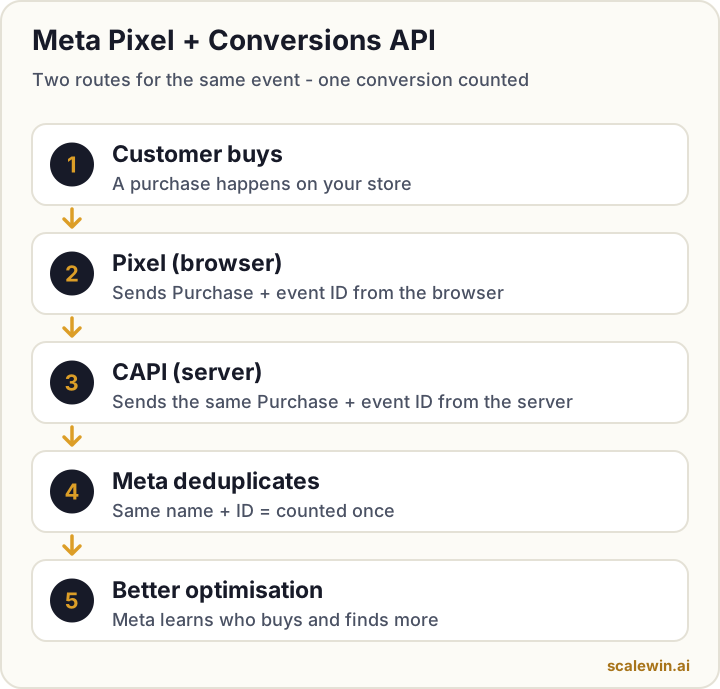
Meta recommends running the Pixel and CAPI together. To avoid counting a purchase twice, both must send the same event name (e.g. Purchase) and the same event ID. Meta then keeps one and discards the duplicate.
How to set up Pixel and Conversions API
| Setup method | Effort | Best for |
|---|---|---|
| Shopify - Facebook & Instagram app | Low (clicks only) | Shopify stores |
| WooCommerce - official Meta plugin | Low | WordPress/WooCommerce stores |
| Meta Conversions API Gateway | Medium (cloud hosting) | Custom websites without a partner integration |
| Server-side Google Tag Manager | Medium-high | Sites already using GTM, multiple platforms |
| Direct API integration | High (developer) | Custom apps, CRMs, offline sales |
Setting it up on Shopify
- Install the Facebook & Instagram app by Meta from the Shopify App Store.
- Connect your Facebook account, business portfolio, Page, ad account and Pixel (dataset).
- In the app's data sharing settings, choose the highest level offered (often called "Maximum") - this turns on the Conversions API alongside the Pixel.
- Remove any old, manually pasted Pixel code from your theme to avoid duplicate events.
- Place a test order and check Events Manager.
Setting it up on WooCommerce
- Install the official Meta for WooCommerce plugin.
- Connect your Meta business assets during setup.
- Enable the Conversions API option in the plugin settings.
- Remove other Pixel plugins or theme snippets that send the same events.
- Test a purchase in Events Manager.
Custom websites
If your site is custom-built, the Conversions API Gateway lets you set up server events without writing code, hosted in your own cloud account. Developers can also send events directly through the API.
Event Match Quality: get more of your sales matched
Event Match Quality (EMQ) is a score out of 10 in Events Manager showing how well Meta can match your server events to its users. More matched events means better optimisation.
How to improve Event Match Quality
- Send customer information with consent - email, phone number (with country code), name, city - hashed as Meta requires.
- Pass the browser identifiers (fbp and fbc) from the Pixel to your server events.
- Send events quickly, close to when they happen.
How to test your setup
Testing checklist in Events Manager
- Open Events Manager and select your Pixel/dataset.
- Use Test Events and place a test order on your site.
- Confirm Purchase arrives from both browser and server, and shows as deduplicated.
- Check the Diagnostics tab for warnings and fix them.
- After a week, compare Meta's reported purchases with your store's real orders.
When the checklist shows a problem
Common Pixel and CAPI mistakes
- Two Pixels installed (app + old theme code) - double counting.
- Server events without event IDs - no deduplication.
- Purchase firing on page refresh of the thank-you page.
- Optimising campaigns for Add to Cart because Purchase isn't tracked properly.
Why fixing these matters for your ad results
Clean tracking is the foundation of everything else - from Advantage+ campaigns to your break-even ROAS calculations. Fix it before you scale your budget.
Key takeaways
- Use both the Meta Pixel (browser) and the Conversions API (server).
- A shared event ID lets Meta deduplicate so each sale counts once.
- Shopify and WooCommerce official integrations set up both quickly.
- Improve Event Match Quality by sending more consented customer data.
- Test with Events Manager and compare Meta's purchases with your real orders.
Meta Pixel and Conversions API: frequently asked questions
Do I still need the Meta Pixel if I use the Conversions API?
What is event deduplication?
What is a good Event Match Quality score?
Is the Conversions API free?
How do I know if my pixel is working?

Ajay is the founder of ScaleWin. He works hands-on with Meta Ads, Google Ads and SEO for Indian D2C and service brands, and built ScaleWin so that the daily work of a performance marketer - reading numbers, pausing losers, scaling winners - happens automatically.
Drafted with AI assistance. How these articles are written
Tracking checked, ads optimised
ScaleWin checks your Meta tracking when you connect and optimises your campaigns on real purchase data every day.
Start your 3-day free trial